
Learn by watching
Start with linking notes and following backlinks, keeping a quote with its recording, finding a passage, or checking local processing.
These four, and nine more — handwriting, installing, exporting, a watched folder, each of the four supported devices, and the full walkthrough — are on YouTube as Get started with SageArchive, ordered as a course, on the SageArchive channel. Same cuts as the ones below, if you would rather watch them there.
The tutorials include clear AI-generated narration and optional English captions. They use edited real screenshots, enlarged where helpful to show the controls. Each has playback controls, a downloadable MP4 and a text transcript. Images open at full size when selected. All shown notes are fictional sample material in the real app; newer captures retain the Sandbox archive label. Your own library will look different.
Start on your Mac
SageArchive requires an Apple silicon Mac and macOS 26 or later. Open the app and use Settings to check what is available on your Mac. Keep space for original recordings, page images, generated audio and model downloads.
You can read saved notes and search their words without a cloud account. Speech transcription and search by meaning use separately downloaded local models. Local answers and writing proposals require Apple Intelligence to be enabled and its on-device model to be available; the OS version alone is not enough.
The main window keeps your library beside the open note. Record in the sidebar opens the dedicated recording view; Add opens the separate Quick Add window. Choose a source or folder in the sidebar to narrow the list. Today helps you resume work. Settings holds sources, models, appearance, privacy and storage. A note listed in the library may still need its recording or pages downloaded before you can read or play it.
Try it with sample notes
A new, empty library offers Try it with sample notes. It adds four short, fictional notes: a recorded interview, a handwritten page, a draft chapter, and Start here: a tour of SageArchive, which opens first and walks you through search, Ask, playback, naming a speaker and handwriting. The samples sit in their own Sample notes source, so they never mix with your own. To remove them, open Settings, then Sources, then Sample notes, and choose Remove. Your own notes are not touched.
Make the library work for you
Use Today → Resume to return to where you stopped, or open recent arrivals and source counts to inspect that part of the archive. A count of listed notes does not mean their media is already downloaded. All Notes, Starred, source cards, library folders and tag filters offer different ways into the same material.
Open the library's Filters menu to show starred notes, audio, handwritten notes, text, notes with a summary, or notes with no transcript. Clear filters when you want the full list again. Sort and group offers Newest, Oldest, Title and Longest, with grouping by date or source. Grouping does not move files or change which source owns a note.
Select rows with their selection controls; use Select all in the selection toolbar's More actions to include every note matching the current filter, not just the rows already visible. Star, Tag, Sync these notes, Export, Trash and Exclude act on that selection. Done clears the selection. At narrow widths, actions move into More actions. Fetching skips notes that no longer need downloading; it is not bulk re-transcription.
Use the titlebar controls to show or hide the sidebar and inspector and give the reader more room. The inspector's Activity tab shows active work and failures needing attention; Ask and Speakers have separate purposes. The version/build shown in the sidebar helps identify the app when reporting a problem.
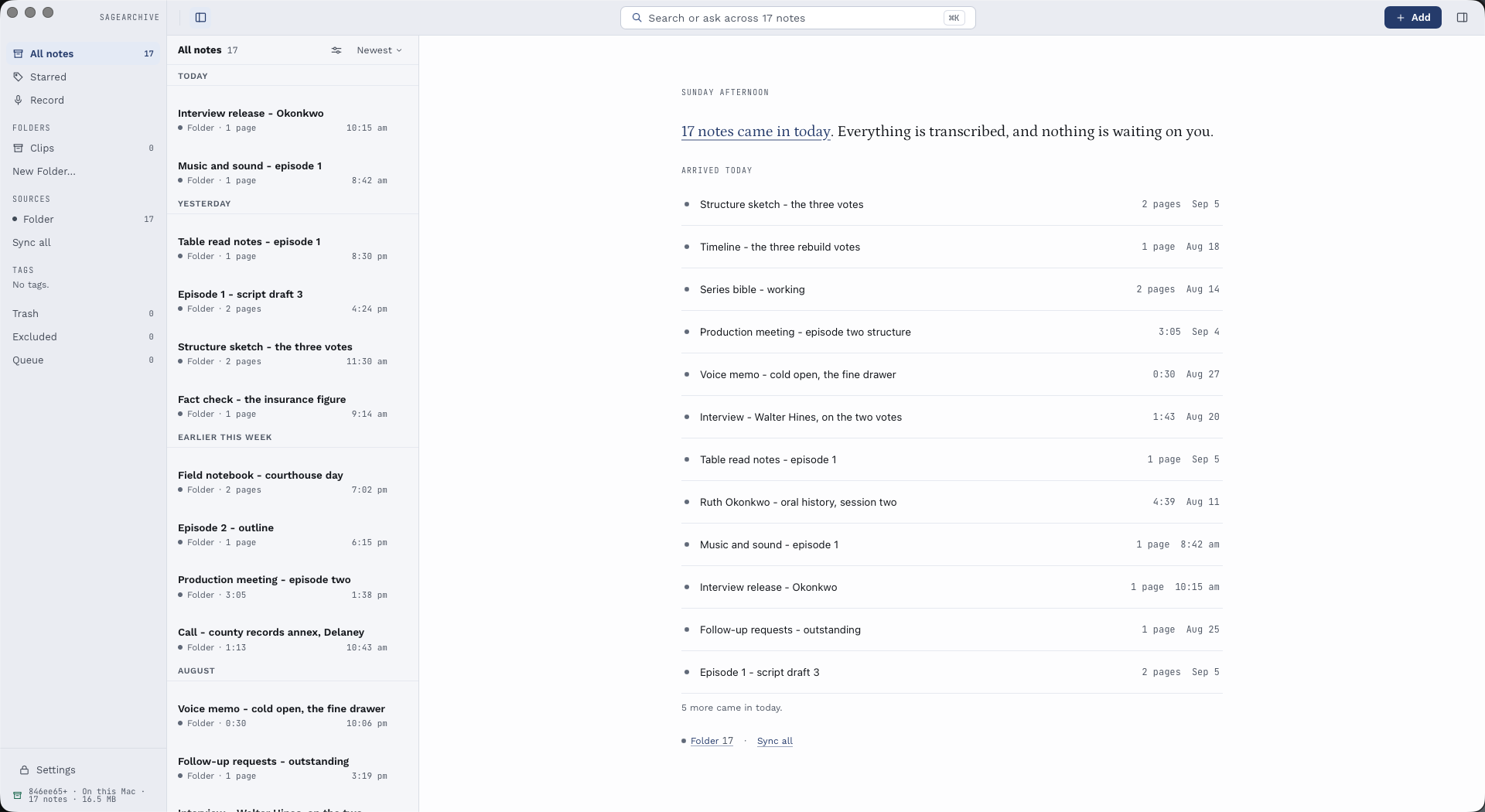 Find your place: choose a source on the left, a note in the list, or a recent arrival in Today. Fictional demo archive.
Connect a source
Open Settings → Sources and expand the source you want. Cards begin collapsed and remember their individual open or closed state. Their name, count, sync information and errors stay visible while collapsed.
- Enable the source and complete its connection controls.
- Where available, turn on Let me choose which notes to sync before the first sync to list notes without fetching every recording or notebook.
- Choose Sync Now. Open Queue to follow each source and any later download or conversion work.
- Open one listed note. Use Download Recording or Download Pages if offered, then wait for conversion to finish.
A successful listing is not proof that a page has been downloaded or converted. Check the note itself. Connections to vendor accounts use the internet even when transcription and answering stay local.
| Source | How notes reach SageArchive | What you need |
|---|---|---|
| reMarkable Cloud | Tablet → reMarkable account → Mac | A paired cloud account and internet access |
| reMarkable USB / Wi-Fi | Tablet → Mac over SSH | A reachable tablet, its connection password for first setup, then the saved key |
| inq | Pen → iPhone app over Bluetooth → inq cloud → Mac | Synced iPhone app and inq sign-in |
| Plaud | Recorder → Plaud account → Mac | Plaud cloud sign-in; direct Plaud USB import is not supported |
| HiNotes cloud | HiDock recordings/whispers → HiNotes account → Mac | HiNotes sign-in |
| HiDock P1 USB | P1 → Mac over USB | A P1 and data cable; other HiDock USB models are not supported |
| Watched folder | Files on your Mac → archive | Readable files; no vendor account |
| Obsidian vault | A vault on your Mac → archive | The vault folder; Obsidian does not need to be running |
| Bear | Bear's own notes on your Mac → archive | Bear installed; no account, no network |
| Apple Notes | Notes' own store on your Mac → archive | Full Disk Access; no account, no network |
reMarkable cloud or direct connection
Choose Cloud in the reMarkable card for account sync and follow the pairing instructions. First let the tablet finish uploading to its account. Cloud pairing is separate from the direct connection's SSH key. Changing transport can produce separate archive entries; do not assume cloud and cable imports merge into one note.
For a direct connection, select USB cable and connect an awake tablet with a data cable. At first setup, use the tablet password shown under its Help → About → Copyrights and licenses settings (the path can vary by tablet software). Enter it in Tablet password, then Connect. SageArchive installs a key for this Mac and stores it in the macOS Keychain; it does not keep that password.
An already enrolled tablet does not need pairing again just because it is unreachable. Check its cable, wake state and macOS Privacy & Security → Local Network permission first. Forget removes this Mac's key, including from a reachable tablet; use it to disconnect deliberately, not as the first response to a timeout.
For Wi-Fi, put the Mac and tablet on the same reachable network and enter the tablet's current address in Address on Wi-Fi. Wait for Address saved. The address is retained across app restarts; clearing it returns checks to USB only. USB is preferred when available.
- Check again saves the current address and tests reachability. A reply on SSH port 22 is not successful authentication, a notebook listing or an import. If USB answers, the saved Wi-Fi route may not have been tested.
- Sync Now makes a fresh sync attempt using the saved connection. The source card reports completion or failure; a successful sync may find no new items. Its count shows total archived notes, not newly found items. Open Queue for work or errors. A saved key or a successful check does not guarantee the sync will succeed.
- If neither route answers, confirm the tablet's current IP, wake it, check network isolation and whether SSH over Wi-Fi is enabled on that tablet. A stale address does not mean your key was lost.
Paper Pro: direct SSH requires Developer Mode; reMarkable 1 and 2 do not use that prerequisite. Enabling it on Paper Pro performs a factory reset and changes device security. Do not enable it merely to try a connection fix. Read reMarkable's official Developer Mode instructions, back up/sync the tablet first, and choose the cloud route if you do not want that change. The vendor also documents separate Wi-Fi SSH enablement. This requirement does not promise compatibility with every tablet model or firmware.
inq
Sync your pen to the inq iPhone app over Bluetooth, and let the app upload its pages. Then open the inq card and choose Sign In. The vendor sign-in window handles your password. Use Existing Session is an alternative for users who already have a valid session; treat session text like a password and never send it to support.
Sync SageArchive after the upload. Page counts reflect pages with imported ink, so they can differ from the notebook's advertised capacity. New writing must reach the cloud before another sync can find it. The pen's USB connection is not a SageArchive ingestion route. Unknown notebook geometry produces an error rather than guessed page placement.
If a session expires, use Sign In Again. Keep your existing usable notebook while investigating a failed refresh. Cancellation, retry and unchanged sync are different from checking that newly written physical pages have arrived.
Plaud and HiNotes
For Plaud, sign in from its source card, list notes, then download a recording. SageArchive uses the Plaud account; plugging in a Plaud USB cable does not import its recordings. A vendor transcript may accompany the imported note. Use Convert when you want to process the saved recording with your selected transcriber.
For HiNotes cloud, sign in to the HiNotes account used by your recorder. It can contain recordings and shorter whispers. An expired session needs Sign In Again, not deletion of your archive.
For HiDock P1 USB, choose the USB transport, attach a data cable and use Connect Device. Check Status reports the device state. Close vendor browser tabs or other software holding its USB interface if the device is busy. SageArchive reads recordings without deleting the originals. Cloud and USB can keep separate documents for the same recording; repeat sync within one transport is the supported way to avoid fetching it again.
Sync and recover without losing your place
Use Sync Now for one source or Sync all for eligible sources. A failure in one source does not prevent healthy sources from completing. Expand its card or open Queue to see the specific error; a collapsed card still shows failures.
In Settings → General → Startup and Syncing, Sync automatically is off by default. Turn it on and choose Sync every if you want scheduled checks. Failed sources observe the retry interval too; they should not retry every minute. Manual sync requests a fresh attempt. Turning automatic sync off does not cancel a job already running.
Use Queue's Cancel for work you want stopped. Download/checkpoint retention depends on the operation; use the displayed retry or resume action instead of deleting temporary files. For inq refreshes, previously published pages remain usable until a replacement is ready. A failed or cancelled initial import may still need a retry before any pages are readable.
Import files and watch folders
Choose files or a folder through Add, or drag them into the app. Supported imports include common audio formats, PDF, Markdown and plain text. Quick Add also accepts podcast/feed or supported audio links. An ordinary web URL is saved as a link note, not a copy of the whole web page. Podcast imports need a network connection. Supported feed links import the newest episode rather than subscribing to every future episode; direct supported audio URLs import that file. Apple Podcasts links can resolve through their feed. Podcast imports receive a Podcasts tag. A page about a podcast is not necessarily an audio or feed URL.
Each watched folder has its own source card, name, path, count and cloud permissions. Rename a card to make it easy to recognize; Show in Finder opens its real location. This is different from a library folder, which organizes notes already inside SageArchive.
Identical file bytes deduplicate into one archive note. If that file appears in two watched folders, its locations can show both. Nested roots can overlap; the most restrictive applicable source consent controls cloud use. A note's location is not permission to upload it.
Import your Apple Notes
Switch on Apple Notes in Settings → Sources. There is nothing to choose. Notes does not need to be running, no account is involved and nothing is written back.
SageArchive needs Full Disk Access to read Notes' own store. If a sync says so, open System Settings → Privacy & Security → Full Disk Access and switch SageArchive on.
Notes in Recently Deleted do not come across. You deleted them.
A locked note cannot be read, so it is left where it is. Its text is encrypted and SageArchive has no way to open it.
A note iCloud has not downloaded to this Mac has nothing to import. Notes keeps a placeholder for every note in your account and fetches the text only when it needs it — on the library this was built against, 16 of 54 notes were in that state. Open Notes, let it finish, then sync again.
Tables come across. A table in Apple Notes is not part of the note's text — it is stored separately — so each one is read and added after the note's own words, one line per row with the cells separated by tabs. A row stays on one line so a label and its value stay together when you search or ask about them.
Photographs and drawings come across too. The picture is copied into your archive and kept there, so a note that is nothing but a drawing is no longer an empty note. A drawing made in Notes has no original image — Apple keeps the pen strokes in its own format and renders a picture beside them — so what SageArchive keeps is that full-size render. It is the picture, not a thumbnail. A file iCloud has not downloaded to this Mac cannot be copied; open Notes, let it finish, then sync again.
Each note keeps Apple's own identity, so editing a note in Notes updates the note already in SageArchive rather than adding a second one. Folders are not imported, and the text inside a photograph is not read yet — a note's own text, its tables and its files are.
Import your Bear notes
Switch on Bear in Settings → Sources. There is nothing to choose — there is one Bear on a Mac and SageArchive reads its notes where they already are. Bear does not need to be running, no account is involved and nothing is written back.
Archived notes come across too. Bear's archive is where you put a note you are done with, not one you want gone, and the point of SageArchive is one place that holds everything.
Notes in Bear's trash do not come across. You deleted them, and an archive that quietly undeleted things would be the wrong tool.
A locked note cannot be read, so it is left where it is. Its text is encrypted and SageArchive has no way to open it; importing one would produce a note with a real title and an unreadable body.
Each note keeps Bear's own identity, so editing or renaming a note in Bear updates the note already in SageArchive rather than adding a second one.
Import an Obsidian vault
Settings → Sources → Obsidian → Add Vault and choose the folder Obsidian opens. SageArchive reads the vault; it never writes to it, and Obsidian does not need to be running. A folder that is not a vault is refused when you choose it rather than after a scan that imports nothing.
Markdown notes anywhere inside are imported, 24 folders deep. .obsidian, .trash and other hidden folders are skipped. Attachments — PDFs, images, audio — are left alone; add the same folder as a watched folder as well if you want those too.
A note's YAML frontmatter is read for its title, tags and creation date, and then removed from the imported text, so tags: [project] is not something search matches or a narration voice reads aloud. [[Wikilinks]] are reduced to the words you would read: [[Ada Lovelace]] becomes Ada Lovelace, and [[2026-09-24|last Tuesday]] becomes last Tuesday. Embedded attachments (![[diagram.png]]) are dropped.
A vault note is identified by its path inside the vault. Editing a note in Obsidian updates the note already in SageArchive. Renaming one brings it in again under its new name, and the note under the old name stays — remove that one yourself if you do not want it. Each vault is its own source card with its own name, count and permissions.
Stop Watching stops the folder's future scans and retains notes already imported. Re-adding the same path preserves its source identity. A missing drive or moved folder can produce Not there any more: reconnect it or deliberately stop watching. Do not delete retained notes just to clear a missing-folder warning.
Mixed imports can partly succeed. A valid text note can be ready while a malformed PDF fails conversion. Open Queue for the failed item and keep the usable result. Correct the original file or retry the appropriate action; repeating an entire import is not always necessary.
Read recordings and correct handwritten pages
For a recording, click a transcript passage or its time marker to seek to that stored segment. Drag to select text without seeking. Command-F searches within the open transcript; Return and Shift-Return move between matches, and Escape closes the find panel. Copy Text copies selected words without source metadata; use Copy With Source when you want a saved quotation relationship.
The player offers play/pause, back/forward skips, a position control and playback speed. Clicking the waveform also seeks. The current passage follows playback. These times belong to segments, not individual words. The recording transcript is read-only; speaker renaming is separate from editing recognized handwritten lines.
Open the inspector's Speakers tab to rename labels that the transcription provider supplied. Click a label, enter a familiar name and press Enter; this changes the displayed name for that note rather than identifying that person across your archive. Local transcription, Groq and OpenAI do not separate speakers in the current implementation. Deepgram can supply speaker labels when used with the required key and source permission. A transcript without labels cannot gain them just by renaming a person.
For handwriting and PDFs, use Page, Text or Both, previous/next page controls, and the page zoom control (Fit, 1×, 2×). Hover a recognized line to see its available page location; clicking a highlighted region takes you to its text. Some lines have no reliable location and remain searchable without a precise page highlight. Lines need a look, when shown, takes you to uncertain recognition for inspection, not a guaranteed list of every error.
Click a recognized handwritten line to correct it. Press Enter or leave the field to save; Escape abandons the current edit. Edited by you — undo restores the machine reading for a corrected line. The correction changes the saved searchable text without redrawing your original ink. Review important names and numbers against the page image; do not assume OCR is exact.
Choose the handwriting approach in Settings → Handwriting → Convert with:
- Auto uses available device text and local Apple Vision, with a cloud vision-model attempt for low-confidence pages only when permitted and available.
- Device only uses the device's supplied conversion where present; it cannot invent text the device did not supply and does not provide page highlight geometry in this mode.
- Apple Vision uses local recognition.
- Vision model requests the cloud vision route; source permission and a usable provider key still apply. Inspect the result and any fallback notice rather than assuming the selected mode ran successfully.
Use the note's Convert action to request conversion again. This can change the machine reading and search results; retained quoted snapshots stay separate. Re-conversion is not a substitute for preserving a backup of important corrections.
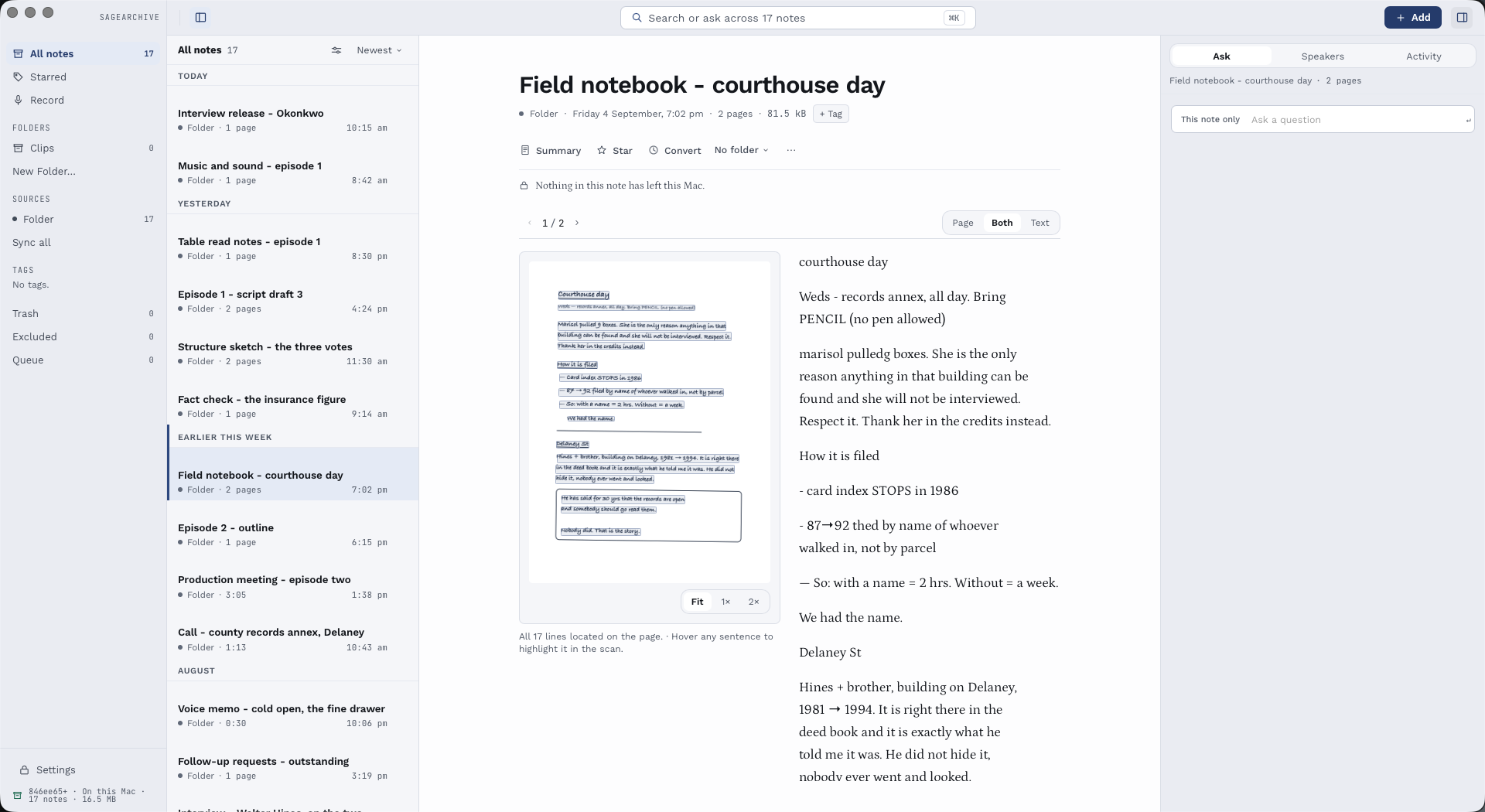 Keep the original page beside its text when checking names, numbers and uncertain recognition.
Set up models and work offline
Open Settings → Advanced for Whisper speech models. Choose a model appropriate for your Mac and available disk space. Download progress, cancellation and resume are shown by the installer; use its controls. Files are verified before installation. If verification fails, retry the download rather than renaming a partial file into place.
Open Settings → Search for the embedding model and Check Search Availability. Word and identifier search work without an embedding model. Search by meaning needs a working embedding model; a file merely appearing installed is not the same as the live search status. If both supported variants of the bundled model are installed, the app prefers FP32 over INT8. Meaning search can also be built by a server you already run, which is a different set of trade-offs — see Build meaning search with a model you already run.
Once their required models are installed, local transcription and semantic search can run offline. Reading saved notes and word search do not need model downloads. Local answering also needs Apple's available on-device model. Vendor sync, podcast downloads, model downloads and optional cloud processing need internet access. Losing the network does not erase the saved archive.
Capture a recording or a quick thought
Open Add for Quick Add. Type a thought and choose Save. In its text field, Enter saves and Shift+Enter adds a line. Paste plain text or a copied SageArchive excerpt. Quick Add keeps special excerpt metadata but does not preserve general rich-text formatting. To paste supported formatting, open the saved authored note and paste into its body. An existing ordinary URL can be saved as a link note.
To record, use the recording control and choose Microphone, System audio or Microphone and system audio, with the input device you intend to use. Confirm the timer and input meter before relying on a recording. macOS may ask for microphone or system-audio capture permission. Change permissions in System Settings for SageArchive itself.
Stop and save when finished. Audio is saved before transcription; the finished transcript arrives later. A recording made through Quick Add of up to 60 seconds goes into Clips; longer recordings remain recordings without automatic Clips filing. There is no live interim transcript or word-level audio alignment. No-speech detection reduces invented text on silent/non-speech input but cannot guarantee perfect recognition; keep the original audio and review the words.
A zero microphone meter can mean the wrong input, a denied permission or a closed laptop lid. Apple silicon MacBooks disconnect the built-in microphone with the lid closed; open it or select a working external microphone. A warning is not proof that another route is capturing useful sound. Use Cancel/Discard deliberately when you do not want to keep a capture; closing a window is not a substitute for checking its final state.
In Settings → General, enable Enable Global Quick Add Shortcut and set Quick Add Shortcut to open it from another application. If another app owns that shortcut, choose a different combination and check the displayed registration result. Copy Completed Clips copies the finalized transcript only after saving; turn it off to leave the clipboard alone. Failed capture/transcription must not be treated as a completed copied Clip. If clipboard access fails, open the saved note and copy its text yourself.
Write and organize notes
Open a saved authored note to edit its title and body. Use headings, emphasis, lists, quotations and links as needed. Changes autosave; wait for Saved on this Mac before leaving. Opening a note without changing it should not create a new saved revision. Undo and Redo apply to your edits; reopening is a useful check that the intended text was saved.
Create a library folder from the sidebar and file notes into it. Rename it or move it to Deleted Folders when no longer needed; restoring the folder recovers its membership. Clips is a protected collection rather than an ordinary folder you can rename or delete. Tags provide another way to group and filter notes without changing their original source. Use Add tag on an open note, or Tag on a selection; remove a note tag using its tag control. Settings → General → Tags in the sidebar hides or shows filter shortcuts without deleting the tags. Star / Unstar marks a note for the Starred view. Use File note in folder on the note to choose its library folder, or No folder to remove that filing; a note has one such folder at a time.
For a suggested edit, choose Add to the end or Rewrite the note, enter your instruction, and inspect the proposal. Add should contain only the new text; Rewrite replaces the body with the proposed version. Use Discard if it is wrong. Apply only what you want to keep, then check the saved note. A local model requires Apple Intelligence; a cloud model also needs the relevant answering permission. Generated edits can be wrong even when saving works correctly.
Link notes and keep quoted sources
An ordinary link says “this other note is relevant.” A saved transcript quote keeps the passage itself and its recording position. They have different return paths:
| What you want | Use | Return path on the source |
|---|---|---|
| Refer to another authored note | Link note in the note editor | Linked from |
| Keep a recording passage with its source | Select transcript text → Insert Into Note or Quote in New Note | Referenced by |
| Format your own words as a block quote | The editor's Quote formatting button | No source relationship is created |
The Link note picker lists other authored notes. Create those notes with Add first; an imported Markdown file is not an authored note in this picker. If you just created a target and it is missing, open another note and return to refresh the choices. Ordinary local note links can also target other note kinds through the editor's Link control when you have their complete sagearchive://note/… URL.
Link two chapters into one review
- Use Add to create authored notes named “Opening chapter” and “Closing chapter.” Open each to write or paste its text into the note body.
- Create an authored “Chapter review” note and write your comment about the opening.
- Put the cursor where you want a reference. Choose Link note → Opening chapter.
- On another line, add your comment about the ending. Choose Link note → Closing chapter.
- Wait for Saved on this Mac, then follow the closing chapter link.
- In that chapter, choose Linked from → Chapter review to return.
Watch: Link two chapters and follow a backlink · 1:06 · AI narration · English captions availableDownload MP4 · Read the tutorial transcript
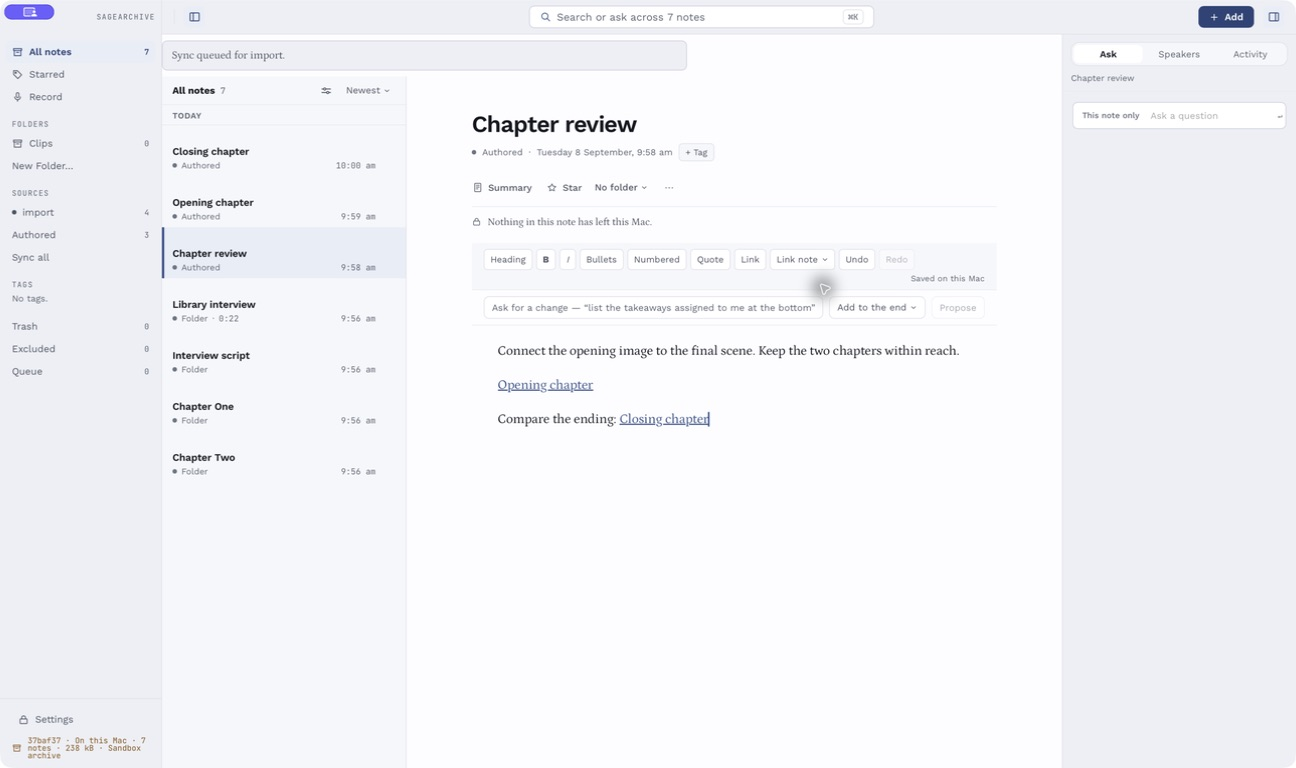 Multiple note links can coexist with your own comments. The links open whole notes.
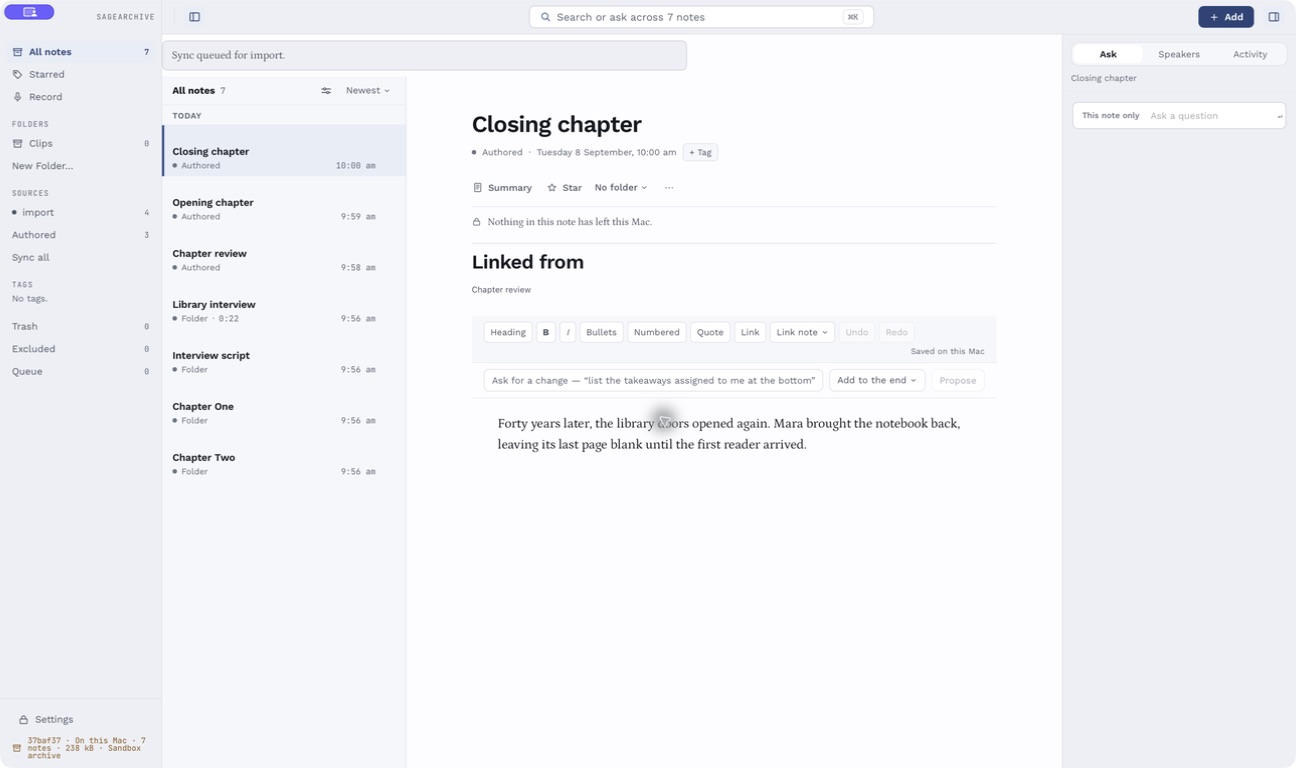 Linked from is the return route to notes that link here.
Keep a timed quote in your review
- Open a recording that already has a transcript.
- Drag across the passage you want to keep. A selection toolbar appears with its stored time range.
- Choose Insert Into Note → Chapter review to use your existing review, or Quote in New Note to start a new authored note.
- In the destination, check the saved words and the source title. Add your own comments around the excerpt.
- Click the excerpt's play button to open the original recording at its stored segment time.
- On the source, choose Referenced by → Chapter review to return to the note quoting it.
Watch: Save a transcript quote and return to its source · 1:09 · AI narration · English captions availableDownload MP4 · Read the tutorial transcript
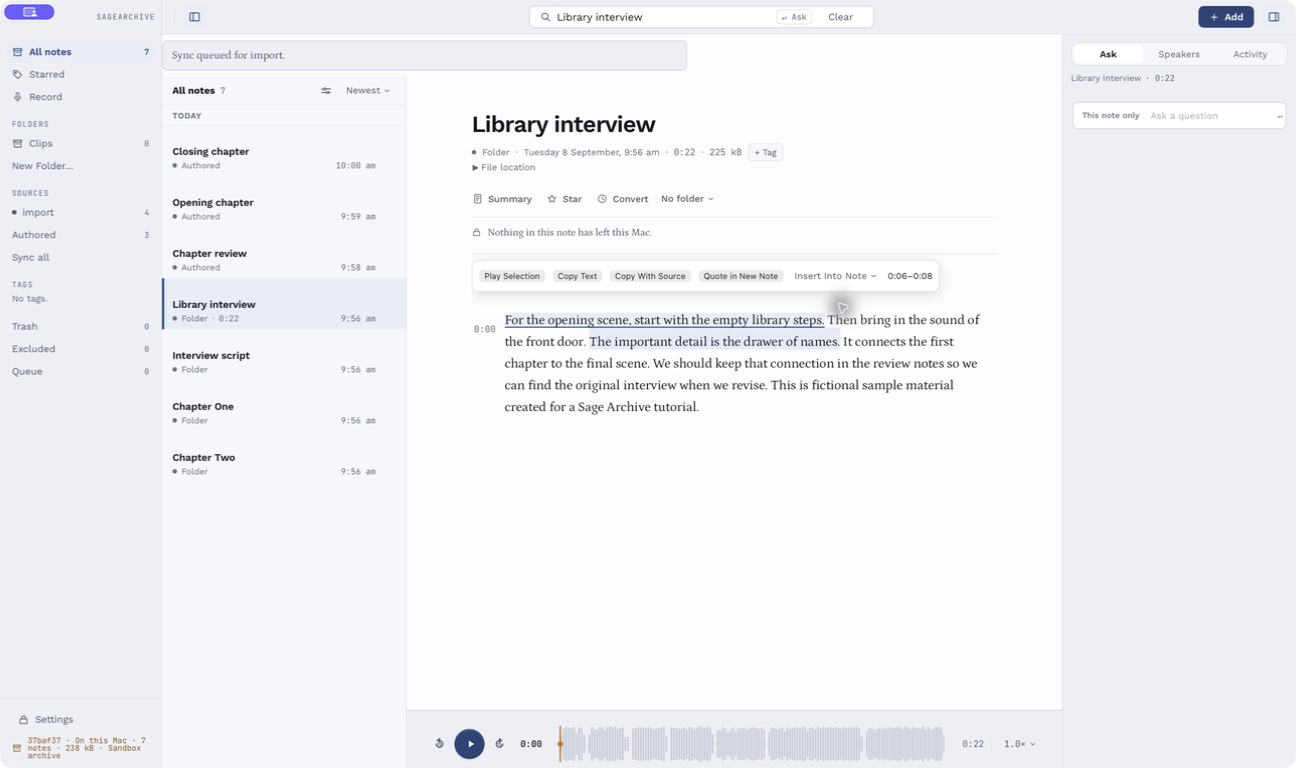 Select text in the recording transcript to reveal the source-preserving actions.
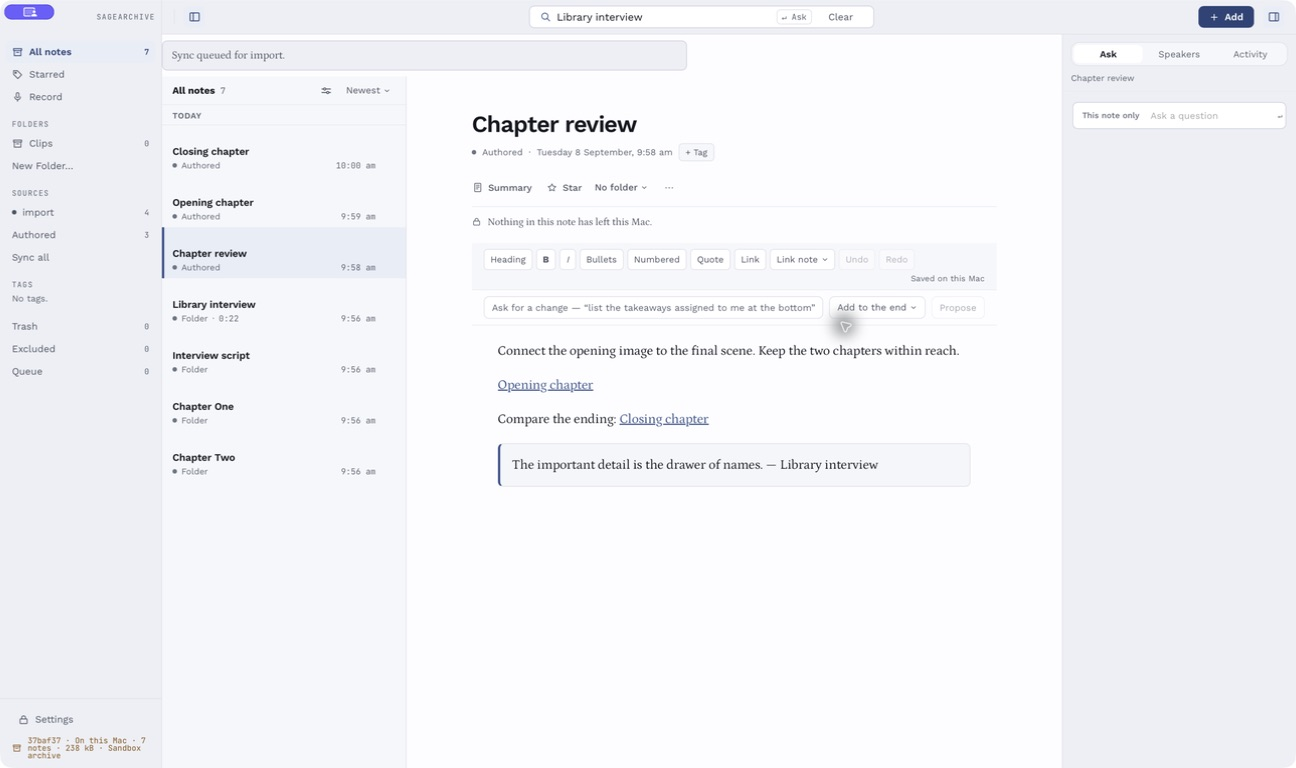 The saved excerpt has its own source and play control. It is more than block-quote formatting.
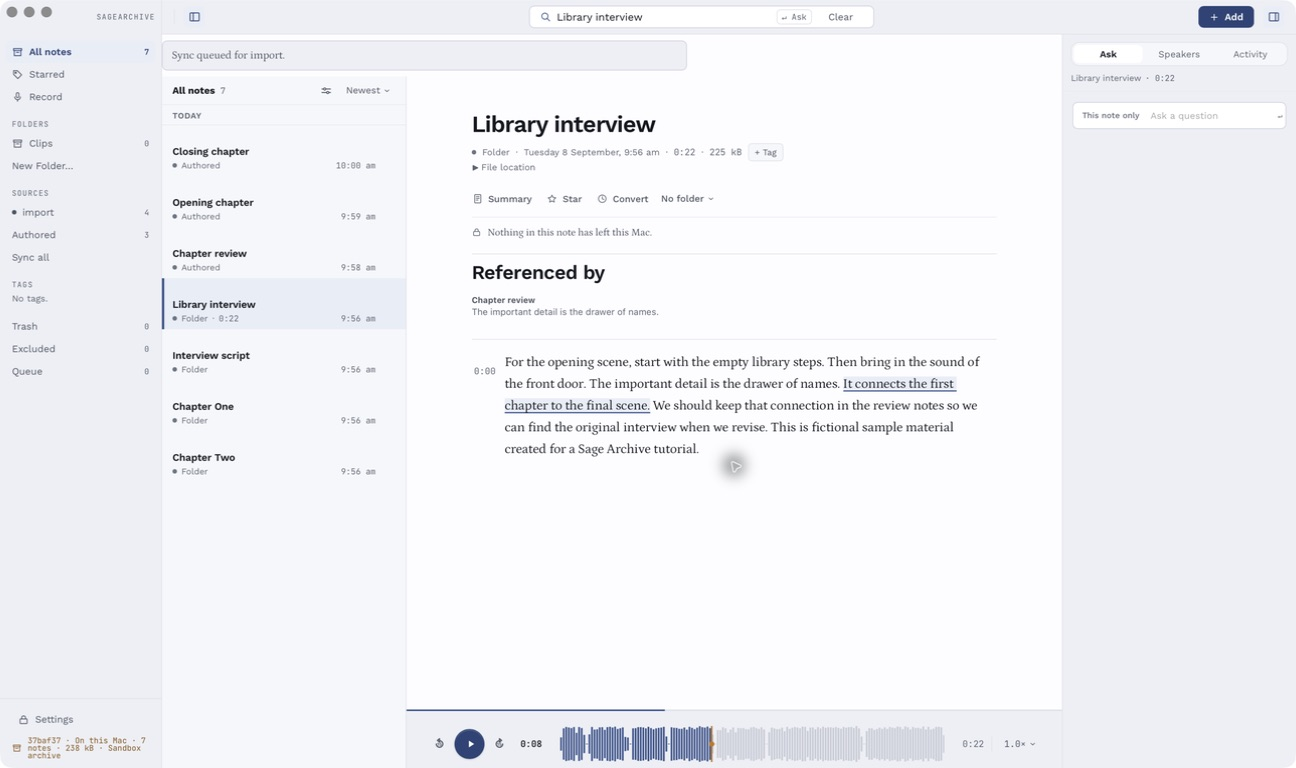 Referenced by shows where this recording has been quoted. Ordinary links appear separately under Linked from.
For an immutable timed quote, select text in a recording's transcript. Play Selection uses the stored segment boundaries, which may cover more words than your exact character selection. Quote in New Note, Insert Into Note, or Copy With Source lets you keep the passage in an authored note. You can combine quotes from different recordings, repeat passages and add your own prose and ordinary links. Referenced by on a source leads back to the notes quoting it.
Pasting Copy With Source back into SageArchive creates distinct excerpt relationships. External apps receive readable text, attribution and a local note link; they may drop rich metadata. A SageArchive link is not a public sharing link and does not grant another person access to your archive. A sagearchive://note/… link opens the matching note in SageArchive on a Mac that has it; copied recording links can include start/end times. Page-position parameters are not supported by these local note URLs. Keep the complete copied link rather than editing its identifier. A link cannot recreate missing media or transfer your archive to another Mac.
Renaming a source keeps navigation tied to the same note. Re-conversion can mark a quote's source as changed; the saved quote remains your original snapshot rather than being silently rewritten. Moving the source to Trash makes quote playback unavailable; restoring it permits navigation again. Permanently deleting it leaves readable quote text but cannot restore its audio. Exact untimed manuscript paragraph/page anchors are not supported by this timed-quote feature.
Find a passage and ask a question
Watch: Search for a passage and open the recording · 0:44 · AI narration · English captions availableDownload MP4 · Read the tutorial transcript
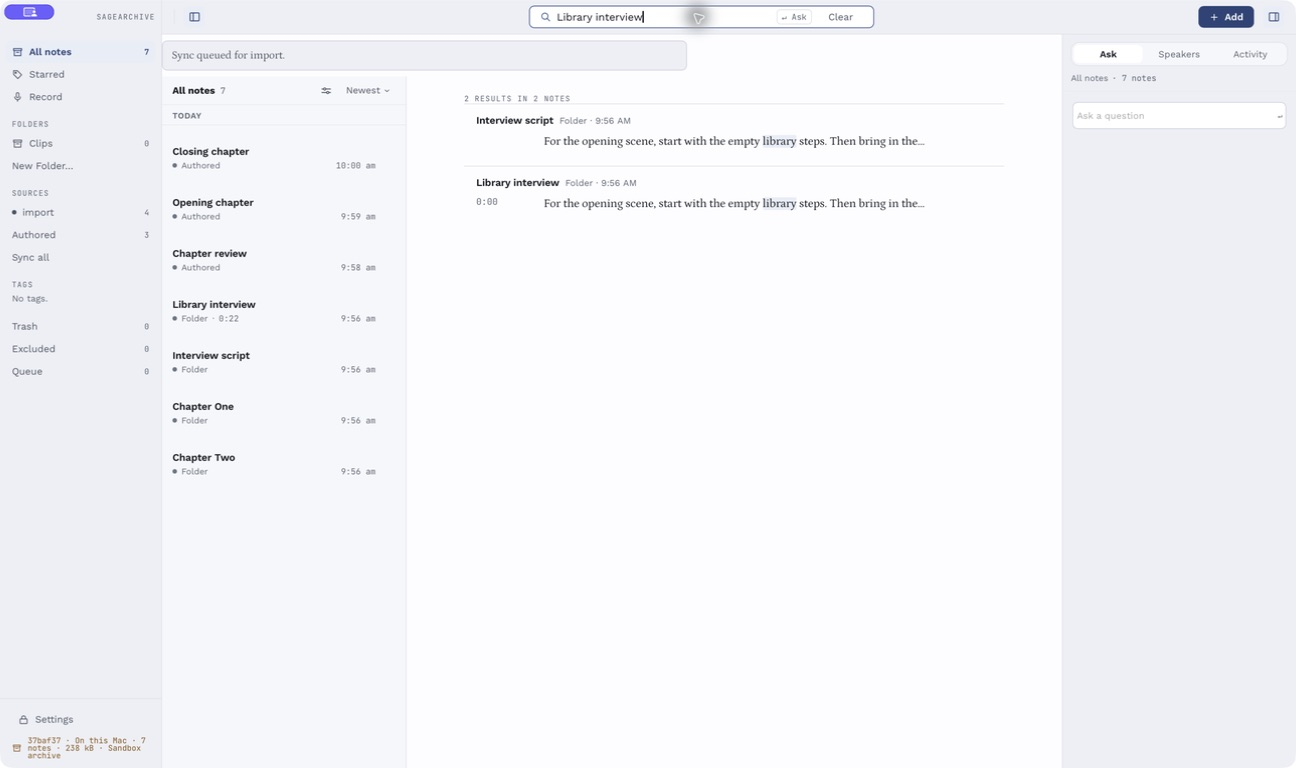 Read the passage result and choose it to open its source. Typing searches; Enter asks for an answer.
Use the search field or Command-K. Typing searches; Enter asks for an answer using the active library filter. The answer's Stop button currently does not reliably cancel the active model request; later text may still arrive. Do not treat it as a way to stop cloud processing or charges. Clearing the field returns to the library but does not cancel that request. Search by words, identifiers such as an IP address, or meaning when the local model is available. Use sidebar/source/folder filters to narrow the library. Results can include related passages rather than exact phrase matches; open the recording position or notebook page to check them. The count distinguishes matching passages from notes. Date-oriented searches can offer candidate date windows or pages; ambiguous date readings are suggestions to verify, not certain calendar facts. These date suggestions are separate from the filtered hit list and can point to other pages in the archive.
The inspector's Ask panel starts with the whole archive and gives the open note extra relevance; opening a note alone does not restrict the answer to it. Turn on This note only when you need that restriction. This panel does not inherit the library's current filters. Suggested starter questions are a shortcut to asking, not prewritten answers. Ask answers and conversation history are temporary, not saved archive records. The inspector clears its history when you change notes, and restarting does not restore the conversation. Copy anything you need into an authored note, or create a saved summary. The app retrieves passages and attaches source citations. Open a citation to check the original: a generated answer is a reading of your material, not a replacement for it. A missing or unlocated handwritten line cannot acquire a precise highlight merely because a model mentioned it.
Open Summary, choose a template, and select Write It when you want a saved summary. The six choices are Meeting minutes, Action items only, Lecture notes, Interview, Daily log and Plain summary. Pick the shape you need, such as commitments or interview follow-ups, then check its citations. Write It Again replaces the saved reading for that template; Delete in Summary removes that summary, not the source note. Different template summaries can coexist. Summaries and editing proposals may use the whole selected note, unlike a question answered from retrieved excerpts. Confirm the engine and permission before sending sensitive material.
Use your archive from Claude
Settings → Answering → Claude and other AI apps lets Claude Desktop, Claude Code and other apps that speak the Model Context Protocol (MCP) search your archive and quote it. It is off until you switch on Share with AI apps on this Mac. The line under the switch shows the local address it uses, or the reason it could not start.
Only apps on this Mac can connect, and only with a token kept in the Keychain. The apps can search, read and list notes; they cannot change, delete or sync anything. Every passage they receive carries a sagearchive:// link that opens the exact recording moment or note in SageArchive.
A source is shared only when its Answer with a cloud model permission is on in Settings → Sources, because text an AI app reads goes to that app's model provider. Notes from other sources are not returned, and the section lists which sources are not shared.
Once sharing is on, the section shows each app's setup before you copy it: the exact text, with your access token shown as dots.
- Claude Code: select Copy command, then open Terminal on your Mac, paste and press Return. It is a Terminal command, not something to type into Claude. It adds SageArchive for every Claude Code session in any folder; start a new Claude Code session afterwards.
- Claude Desktop: in Claude Desktop choose Settings → Developer → Edit Config, which opens
claude_desktop_config.json. Select Copy config in SageArchive. If the file is empty or holds only{}, replace it with what you copied; if it already has anmcpServerssection, add only thesagearchiveentry inside it. Save, then quit and reopen Claude Desktop. It runs SageArchive's own helper, so SageArchive must be open for Claude to reach it.
The copied setup contains the real token, which is never shown on screen; paste it only where these steps say. New token replaces it, and every app set up with the old one stops working until you copy its setup again. Switching sharing off stops the connection immediately.
Other apps that speak MCP
SageArchive offers the same archive two ways, and any MCP client takes one of them:
- Over HTTP, at
http://127.0.0.1:<port>/mcp, with the headerAuthorization: Bearer <your token>. This is what Copy command sets up for Claude Code, and it suits any client that accepts an HTTP MCP server with a custom header. - Over stdio, by running SageArchive's bundled helper as the server command, with
mcp-bridgeand that same address as its arguments and the token inSAGEARCHIVE_MCP_TOKEN. This is what Copy config produces for Claude Desktop, and it suits any client that starts a local command instead.
Neither button produces something another app can take as it stands: Copy command is a claude mcp add line for a terminal, and Copy config is a Claude Desktop configuration file. For any other client, paste what you copied somewhere you can read it, take the four values out of it, and fill in that client's own form:
- the address,
http://127.0.0.1:<port>/mcp— the same in both - the token, after
Bearerin the command, or inSAGEARCHIVE_MCP_TOKENin the config - the helper's path, the
commandin the config, if the client runs a local command - its arguments,
mcp-bridgefollowed by the address
Clients that run a local command include LM Studio, Cursor, VS Code's Copilot, Zed, Cline and Continue, among others; which of them work, and how well, is between you and that app — the two setups above are tested with Claude Desktop and Claude Code, and nothing else here has been tested.
Three things hold for every client. SageArchive must be open, because the server is the app. The rules do not change with the client: read-only, this machine only, and only the sources whose Answer with a cloud model permission is on. And the token is a password — paste it into a configuration file on this Mac, never into a chat window, an issue or a shared repository, and use New token if one has been somewhere it should not.
Send a note to your reMarkable
Open a note, select ⋯, then Send to reMarkable. SageArchive asks first, then sends the note to your tablet as a new document, through reMarkable's cloud. It arrives at the top of My files. Your reMarkable must be paired in Settings → Sources → reMarkable.
A note that is a PDF or EPUB, such as a manuscript chapter, is sent as that file. A recording's transcript, recognised handwriting or a written note is laid out as a PDF sized for the tablet's screen, with times and speakers or page numbers, and space at the foot of each page to write.
Sending only ever adds a document. It cannot rename, move, change or delete anything already on your tablet. Each send is recorded under Settings → Keys & Privacy → What Has Left This Mac → reMarkable.
Choose what may leave your Mac
Watch: Check local transcription and recorded cloud processing · 0:47 · AI narration · English captions availableDownload MP4 · Read the tutorial transcript
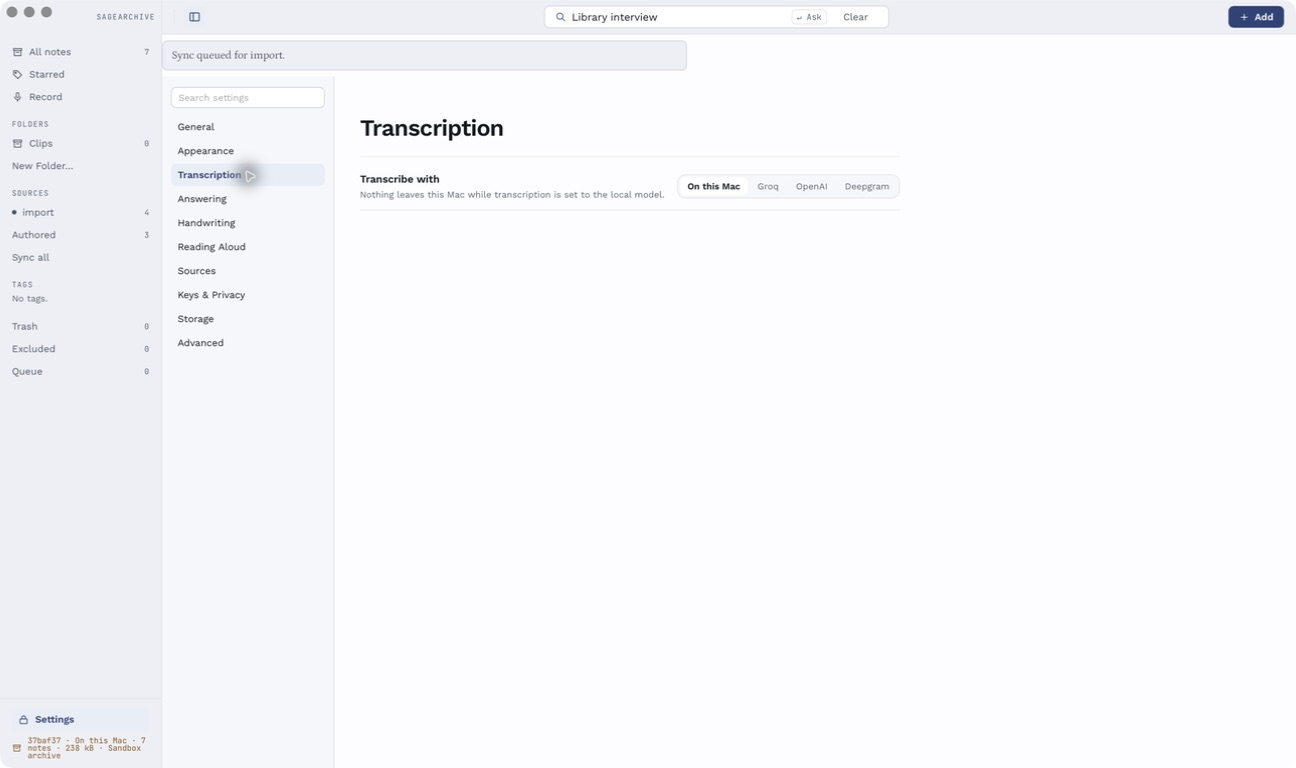 Choose how speech is transcribed. Local models and optional cloud processing have different prerequisites.
Local processing is the default. Cloud transcription, answering and narration have separate permissions for each source in Settings → Sources, plus provider selection and keys in Settings. Answer with your own model server and Transcribe with your own model server are a fourth and fifth permission on each source, separate from their cloud counterparts: a server you run is not a company, and allowing one never allows the other in either direction. They are also separate from each other, because a recording is a much bigger thing to send than the passages that answer a question — allowing your own server to answer does not allow it to hear every recording you own. Embed with your own model server and Embed in the cloud are a sixth and seventh, and they are the largest of all of them: the only ones that are not about one note. Answering sends the passages that answer one question when one is asked; embedding sends every passage of every note in that source, automatically, and sends them again whenever the index is rebuilt. Choosing a cloud provider alone does not authorize every source. Shared file locations use restrictive consent. Recorder/Clips transcription has its own setting under Transcription.
Cloud transcription sends audio; cloud handwriting conversion sends page images using transcription permission. Cloud answers send the question, retrieved text and source metadata. Requested summaries and editing proposals can send the selected note's text. Cloud narration sends text to the voice service; its generated audio may also be processed to time the reading. These are different operations, not a blanket archive upload. Building meaning search on a server you configure is the exception that is closest to one, and it is the only operation with its own pair of permissions for that reason — see Build meaning search with a model you already run.
Settings → Keys & Privacy → What Has Left This Mac records cloud-processing activity. It lists every recipient the record actually holds — companies, and the host of any non-loopback model server — so deleting or repointing a server does not remove the way to ask what went to it. A server on this Mac is deliberately not in that list; its trips appear on the note itself, under Sent for processing, which names each recipient rather than claiming everything there left the machine. Turning a permission off does not erase past activity or retract data already sent. Vendor account connections and model downloads also use a network; they are not the same as sending notes to an optional AI provider. API keys and vendor credentials are stored in the macOS Keychain. See the privacy explanation for the website and app data paths.
The note's processing disclosure names recorded cloud use, and its cost display gives an estimate where usage quantities are available. It is not a provider invoice; missing quantities can leave an incomplete estimate. In What Has Left This Mac, choose a company to inspect recorded processing for notes still retained in the archive. This is not a complete historical receipt: deleting a note can remove it from this view without retracting anything already sent. Turning off a source does not remove its retained notes from consent decisions.
In Settings → Transcription, Transcribe with selects On this Mac, Groq, OpenAI, Deepgram or Your own server. A source card can offer its own transcription provider override; choose the app default to follow the global setting. Where offered for local processing, its downloaded Whisper model override controls that source. Answering is selected globally in Settings → Answering → Answer with — On this Mac, Anthropic, OpenAI, Groq, or Your own server — with provider model fields; there is no separate per-source answering engine because a question may draw on several sources.
In Settings → Keys & Privacy → Keys, use Set, Replace or Clear for a model provider's key. The app shows whether a key exists, not the saved secret. Source account sign-in and disconnect controls live on their source cards. Clearing a key prevents future authenticated requests but does not retract earlier sends or remove saved notes.
Answer with a model you already run
Settings → Answering → Your own model servers points SageArchive at any server that speaks the OpenAI chat API. Add a server offers Ollama (http://localhost:11434/v1), LM Studio (http://localhost:1234/v1), MLX-LM (http://localhost:8080/v1), llama.cpp (http://localhost:8080/v1) and Other, which prefills nothing. You can add several. Each card holds a name, the address, a model, a context window and an optional key; the key is held in its own macOS Keychain item and the app can only report whether one exists. Then set Answer with to Your own server and choose which card answers.
A server on this Mac is not the cloud, and it is not "nothing leaves this Mac" either. The address decides which of the two answering permissions applies, and the card says which before anything is sent:
- A loopback address —
localhost,127.0.0.1,::1— is a server on this Mac and uses Answer with your own model server on each source. Its disclosure reads "Sent to your server at localhost:11434. SageArchive cannot see what that server does next." That last sentence is literal: Ollama can serve a hosted model behind exactly that address, so what the app can tell you is where it sent your text, not where that server sent it. - Any other address, on your network or the internet, is cloud. It uses Answer with a cloud model, it appears in What Has Left This Mac under its host name, and its cost is shown as unknown rather than estimated, because there is no published rate to apply.
Plain http:// is accepted only for a loopback address or a private-network one; a server on the internet must be https://. A username or password in the address is refused — a key belongs in the key field. Redirects are never followed.
The key is bound to the address it was saved for. Change the address and SageArchive stops using the stored key and asks for it again, rather than attaching one host's token to a request sent to another. Removing a server clears its Keychain item first and keeps the card if that fails, so a credential is never left behind with nothing able to reach it.
Check connection asks the server two things: what models it lists, and whether it cites what it is given. The model list fills the picker, and an empty list is a normal answer — MLX-LM and some llama.cpp builds list nothing, so the model field stays free text. The second question is a single made-up test question carrying invented text, never your notes; it reports whether the model returned a citation this app can resolve.
Context window is the model's, not the server's. Retrieved passages are packed to fit it, with room left for the system prompt and the answer. Any passage that does not fit is left out, and the count is named under the answer — so a small model answering from four of eight passages looks different from a thin archive. A summary is packed the same way and tells the model what it did not get; an editing proposal cannot be cut without breaking what Add and Rewrite mean, so a note longer than the window is refused with the two numbers rather than truncated.
Answers that cite nothing are labelled, not hidden. Small models drop citation markers, invent them, or answer in a shape the prompt never asked for. When an answer from your own server cites no passage that resolves to something retrieved, it is shown with "Unverified: this answer cites no passage from your archive, so nothing in it has been checked against your notes." The answer itself is still delivered — the app cannot know the model was wrong, only that nothing was checked.
Answering, summaries, editing proposals, speech-to-text and embeddings can all go to a server you run. The last of those is set up separately, under Settings → Search — see below.
Transcribe with a server you already run
Some OpenAI-compatible servers also answer POST /audio/transcriptions: LocalAI, speaches (faster-whisper-server), a remote whisper.cpp server, and the vLLM-style gateways. Ollama, LM Studio and MLX-LM do not. They serve chat only, and that is the ordinary case rather than a fault.
Check connection now asks that question too and says which. It uploads a quarter-second of invented tone — never your audio, in the same way the citation test question carries invented text and never your notes — and reads only the reply's status and shape. The endpoint card's Speech-to-text row then says whether this server can transcribe, and offers a speech model field where it can. That model id is its own field: the model above answers questions, and sending it to the speech endpoint is a 404.
The answer is remembered with the address it was measured at, so changing the address makes it unknown again rather than silently wrong. A check that could not tell — a rejected key, a rate limit, a server error — is not recorded as a "no": those say nothing about what the server can do. Nor is a server that simply has not heard of the model the check asked for; a missing route and a missing model both answer 404, so the check asks once more in a way that separates them.
A server the last check found to be chat-only will refuse to transcribe rather than uploading recordings it cannot use. One that has not been checked, or whose address has changed since, is attempted: the server is the authority and the remembered answer is only a shortcut.
Then set Settings → Transcription → Transcribe with to Your own server and choose which one. That choice is app-wide: a source card's own transcription override offers the four named providers, because which server transcribes is one setting rather than one per source. A source that should use your own server follows the app setting, which is what leaving its override alone means. The picker lists every server you have added, with the ones that cannot transcribe shown as "chat only" rather than hidden, so a server you expected to find is accounted for instead of missing.
The same address rule decides the permission, and the payload is bigger. A loopback server uses Transcribe with your own model server, its own switch on each source. Any other address is cloud: it uses Transcribe in the cloud, it appears in What Has Left This Mac under its host name, and its cost is shown as unknown rather than estimated. No recording is sent until the switch that applies is on for the source it came from.
The disclosure on the note reads "Your server at localhost:8000 received the audio to transcribe it." That is recorded for a server on this Mac as well as for one anywhere else: the audio did leave SageArchive, and SageArchive cannot see what that server did with it.
Long recordings are split on silence and stitched back onto their original timeline exactly as they are for Groq and OpenAI, so timings and citations work the same way. Speaker labels stay Deepgram-only. These servers run Whisper, which returns no speaker data at all, so the speaker surface does not appear for their transcripts rather than showing one invented label.
A reply that is empty, or that cannot be read as a transcript, is a failure and not an empty transcript — the note is left failed and re-runnable rather than filed as a recording of silence. Failures name the server and the status and never repeat what it sent back, and nothing is retried automatically.
Build meaning search with a model you already run
Search has three arms: words, identifiers, and meaning. The third turns your notes into vectors, and Settings → Search → Build meaning search with chooses which model does that: On this Mac, which is the bundled bge-small-en-v1.5 and the default, or Your own server.
This is the largest thing SageArchive can send, and the only one that is about your archive rather than about a note. Answering sends the passages that answer one question, when you ask one. Transcription sends one recording, when it arrives. Embedding sends the text of every note you allow, automatically, as soon as the model is chosen — and sends it again in full every time the index is rebuilt. That is why it has its own pair of permissions on each source: Embed with your own model server for a loopback address, Embed in the cloud for anything else. The same address rule as everywhere else, decided again on every use.
A source that has not granted it is not embedded, and the screen says which and how many. Meaning search is then partial on purpose: those notes are still found by word and by identifier, exactly as every note is before the embedding model is installed at all. What is not acceptable is a partial index you are not told about, so Settings → Search names the sources it does not cover and counts the passages — "Plaud and reMarkable are not covered by meaning search: 1,216 note passages are not embedded, because that permission is off."
Searching also sends the search. Whatever you type is embedded too, as you type it, so it can be matched by meaning — and on a metered endpoint that is billed. Searches do not appear in What Has Left This Mac: that list is per note, and a search belongs to no note, so filing it against the notes it happened to find would be a record of something that did not happen. The disclosure is on the screen where the server is chosen instead.
Which servers can do it. Ollama, LM Studio and llama.cpp's llama-server serve /embeddings. MLX-LM does not, and that is the ordinary case rather than a fault. Check connection on the endpoint's card asks that question too, with one made-up line — never a word of your notes — and it measures how wide that model's vectors are rather than asking you for a number. There is no width to type and therefore none to get wrong.
The model id is its own field, beside the chat model and the speech model, because a server that does all three serves them from three different models. So is each prefix. Some embedding models want a short phrase in front of a search and a different one — or none — in front of a stored passage; SageArchive cannot tell which yours wants, so both fields are yours and both start empty, which means symmetric. Changing the passage prefix rebuilds the index, because it changes every vector already stored. Changing the query prefix does not: it never touched a stored vector, and it applies on your next search.
Changing the model rebuilds the index. Vectors from two models cannot be mixed, so switching model, server or passage prefix clears them and starts again. It runs as a job in Queue, with a real count of passages rather than a bar that guesses, and it can be stopped. A rebuild against a server is network-bound: what takes nine minutes on this Mac may take an hour against a local server and longer against one on the internet.
While it runs — and if it fails half-way — the archive stays searchable. A note with no vector is still found by word and by identifier; it simply misses the third arm. A failed job says which server and what status, never what that server sent back, and nothing is retried automatically — an automatic retry against a paid endpoint is an automatic charge. Dismiss the failed job in Queue to try again. If the server is simply unreachable when you search, the meaning arm drops out for that search and the other two answer; your stored vectors are left exactly where they are.
Going back is the same control in reverse: set Build meaning search with to On this Mac. The index rebuilds with the bundled model, nothing leaves, no source permission is consulted, and the server you configured is left set up in case you want it again.
Use Queue and fix a failed job
Open Queue to see active work and failures. Dismiss clears a failure from that view; it does not repair or retry the job. Dismiss All, shown when several failures are listed, clears those finished entries without deleting their notes. A source listing, recording download and conversion can be separate jobs. Read the failed job's message before choosing its action: Retry sync, Retry download, Open note, reconnecting a source or downloading a missing model solve different problems.
If pages or audio are absent, download them first. If media is present but text is missing, open the note and use Convert after checking models and source permissions. Keep the original note while retrying. Repeated sync should converge within a source; it does not promise identity merging between different transports.
Deleting a failed note permanently also removes its associated jobs. If it came from a watched folder, pause or stop watching before deliberately deleting it from the archive, or a later scan may bring the original file back. Do not interpret an empty active queue as proof that every listed note has been downloaded.
Listen, export and print
For text, open More actions → Convert Text to Audio. Choose provider/voice in Settings → Reading Aloud and preview the voice before creating a long narration. In Read aloud with, choose local speech or Deepgram; the cloud route also has a Deepgram voice field. You can search installed local voices, filter by language, change sorting, include novelty voices and preview before choosing; System Default follows the system voice. Local voices stay on the Mac; optional cloud narration needs its own source permission. Generation is a job; after completion, use the player's controls. A narrated note is derived audio, not an original recording. Creating another narration replaces the existing reading after confirmation. Once a reading exists, use its narration bar to make it again or use the newly selected voice. You can open another note while generation runs; follow progress in Queue and return to the original for its player. Listen to a sample before relying on pronunciation or a long reading.
To export, select notes in the library, then Export in the selection toolbar. On a narrow list, look in More actions. Choose Markdown, Text, JSON, SRT or VTT and a destination folder. The result reports written files; SRT/VTT skip notes without line times and report that separately. An entirely untimed selection cannot produce subtitles. JSON retains richer note/source metadata; text formats favor readability. Exported note files are not a complete archive/media backup.
Export a folder, a source or a tag automatically
Settings → Export rules turns an export into a standing instruction. A rule is about a library folder, a source, a tag, or any combination of the three — choose more than one and a note has to match every part. Choose the folder on disk to Write into, one or more Formats (each with its own Timestamps, Speaker names and Page geometry switches), and a File names template: {date} {title}, {title} or {source}/{date} {title}. A slash in the template makes a subfolder; a slash in a note's title never does. The example under the field shows what a file will be called.
Saving the rule writes and removes a test file in the destination, so macOS asks for permission to that folder while you are looking at the form rather than during a background run. A new note that matches the rule is written once it is transcribed or converted. The notes that were already there wait for you: a new rule leaves your existing archive alone until you choose Export now (or accept the offer that appears when you save it), so making a rule over thousands of notes does not start writing thousands of files a minute later.
Correcting a line, renaming a speaker or editing the note rewrites that same file, not a (2) copy; a correction reaches the file within about five minutes rather than immediately, because finding it means re-reading every note the rule covers. A rule never modifies or deletes a file it did not create: if something else already has the name, the rule steps to name (2).md and remembers that path instead — and if the file it wrote is later replaced or rewritten by something else, it leaves that alone too and writes its own copy under a new name.
Changing Write into moves the rule to the new folder; the files already written stay where they are and the rule stops managing them. Each rule card carries Export now (which offers to export the notes already in scope when you first save it), Re-export all after a template or format change, Show what it would write for a dry run, Show in Finder, Pause and Delete rule. Deleting a rule leaves the files it wrote where they are. A note that stops matching the rule leaves its files alone too, unless you switch on Delete a note's files when it stops matching. Stops matching means against that rule's own conditions, whichever you set: a folder rule stops matching a note you move elsewhere, unfile, or whose folder you delete; a tag rule stops matching when you take that tag off; any rule stops matching a note you trash or exclude, and editing the rule's About can put notes outside it that were inside it before. Even then the rule deletes only files it wrote itself, and only while they are still exactly what it wrote: a file you edited or replaced is left alone, as is a file it never wrote. Re-transcribing a note does not stop it matching. SRT and VTT skip notes with no line times and count them, as a manual export does.
Runs happen on the queue, so they appear in Queue with their own label and can be cancelled. If the destination is gone — an unplugged drive, a deleted folder — the rule pauses, the reason appears on its card and in Queue, and it resumes on its own when the folder is back.
Filing rules are the companion kind on the same screen. "When a note arrives from this source, file it into this library folder and/or add this tag." A filing rule acts on each note once, so moving a note afterwards is yours to do, and it does not wait for a transcription. Chaining the two is the point: HiDock → Client A → ~/Clients/A/Transcripts.
In the sidebar, a library folder's Auto-export button opens this screen with that folder already chosen.
Printing is for saved summaries: open Summary, select a saved summary, then Print and use the macOS print sheet or Save as PDF. Direct printing of an authored body, raw transcript or notebook page is not a supported app command.
Back up, delete and restore
In Settings → Storage, review media, database and model usage. Back up with Time Machine controls whether the archive is included in your configured Time Machine backup. When excluded, the database is excluded too. Inclusion does not itself create or verify a backup; check Time Machine's own status and keep enough space for recordings and images.
To make a manual backup:
- Quit SageArchive so its database and media are no longer changing.
- In Finder, choose Go → Go to Folder and enter
~/Library/Application Support/com.sagearchive/. - Copy the whole com.sagearchive folder to your backup location. The database and its matching media are both required; the folder also includes downloaded models, which can take substantial space.
- Check that the copy completed before reopening SageArchive. Keep this backup separate from the working folder.
For a manual restore, quit SageArchive first, preserve the current folder separately so newer notes are not lost, then restore the complete matching archive folder to that location. Use an app version compatible with the backup's database schema; do not open an upgraded database with an older app as a shortcut to rollback. Copying only exported text, only the database, or a live database file without its current writes is not a complete backup. Device credentials live separately in Keychain, so moving an archive to another Mac may require reconnecting its accounts.
Trash retains notes for recovery. Open Trash, select a note and use Restore. Delete Forever removes selected trashed notes; Empty Trash removes all trashed notes. These are permanent archive actions, not commands to erase originals on your recorder or tablet. They can make saved quotes' sources unavailable. Deleting notes does not automatically disconnect their source.
To keep specific imported notes out of future syncs, select them in the library and choose More actions → Exclude. They are removed from the archive and listed under Excluded in the sidebar. Choose Allow Again there to let the next source sync bring them back. This differs from Trash → Restore, which recovers retained notes, and Stop Watching, which stops an entire folder source.
A source card's Delete action under its note count permanently removes that source's archive notes; it is not the same as turning sync off or moving a selection to Trash. Retained copies belonging to another watched folder are protected. An enabled sync source can bring remote notes back on a later scan; locally recorded or authored notes have no remote source to recover them from. Read the card's explanation before using this action.
Storage shows archive usage and its media/database paths, not available disk space. Check free space with macOS storage tools. Storage's controls are not a general orphan-file sweep, and the current model installer does not offer a model-removal button.
Buy SageArchive and enter your license
SageArchive is free to try for 14 days with everything working. Settings → License shows how many days are left, and so does the line under Settings in the sidebar.
When you are ready, choose Buy SageArchive. It costs $49 once and includes every update released in the following year; there is no subscription. The checkout is run by Stripe, which also handles any sales tax and your receipt. When payment finishes, the thank-you page shows your license key. Copy it, open Settings → License, paste it into License key and choose Enter key. The key is checked on your Mac; nothing is sent anywhere.
If the trial ends before you buy, nothing is lost. Every note already in your archive stays readable, searchable, playable and exportable. Syncing and transcription wait in the queue and run as soon as a license is entered, and Ask is available again at the same moment. After your year of updates, the version you have keeps working with your license; newer versions need another year.
SageArchive checks sagearchive.com once a day for a newer version. When there is one, a bar at the top of the window offers Install and restart; anything in the queue carries on after the restart. You can check yourself, or turn the daily check off, in Settings → General. Updates are signed, and the app installs only ones signed by SageArchive. If a new version was released after your year of updates ended, the bar offers another year instead, so the app never installs something your license does not cover.
Adjust appearance and everyday preferences
In Settings → Appearance, choose Slate, Clay, Cobalt or Ivory. Translucent chrome changes the surrounding app panels while the reading surface stays opaque. Reading size changes transcripts and summaries, not interface controls. The website keeps its own fixed appearance.
In Settings → General → Startup and Syncing, choose Open at login, Date format and Time format for your routine. Hide filler words changes the displayed/exported reading without deleting the stored transcript; turn it off to see those words again. It is not a speech-recognition correction. Quick Add, clipboard and sync controls are described above. Search settings filters section names; open the matching section to find its controls.
In Settings → Advanced → This Mac, inspect the machine report and model recommendation before choosing a download. This is guidance based on capabilities and available models, not a guarantee of speed or recognition quality for every recording.
Keyboard and everyday troubleshooting
| Task | Action |
|---|---|
| Search or ask | Command-K |
| Open Settings | Command-comma |
| Find within the open recording transcript | Command-F; Return / Shift-Return for matches |
| Navigate the library | Up/Down; use Space on the focused row to toggle selection |
| Play or pause | Space when it is not owned by a focused row, button or editing field |
| Save Quick Add text | Enter; Shift-Enter inserts a new line |
| Dismiss a menu or cancel Quick Add | Escape; read any discard prompt before continuing |
| Reach another control | Tab / Shift-Tab; macOS keyboard-navigation settings affect control focus |
If Space selects the wrong thing, click the intended list row or reader area and check what has focus; do not assume a highlighted note is the focused control. If an action is missing, widen the list or inspect More actions. App Appearance offers themes and reading size; this website keeps one fixed appearance.
For a disconnected source, check its exact transport and error before signing in again or forgetting it. For a zero meter, check input/permissions/lid. For unavailable local answers, check Apple Intelligence readiness. For missing semantic search, use Check Search Availability. For a failed model checksum, retry through the installer. A failed item should not stop you reading notes already saved.
When asking for help, include the app version/build, the source and transport, steps, exact error and whether retry changes it. Send only material you choose to share. Do not include passwords, API keys, session text or private recordings in a routine support request. Contact SageArchive support.